07 / CALIBRATION
Calibrate hardware
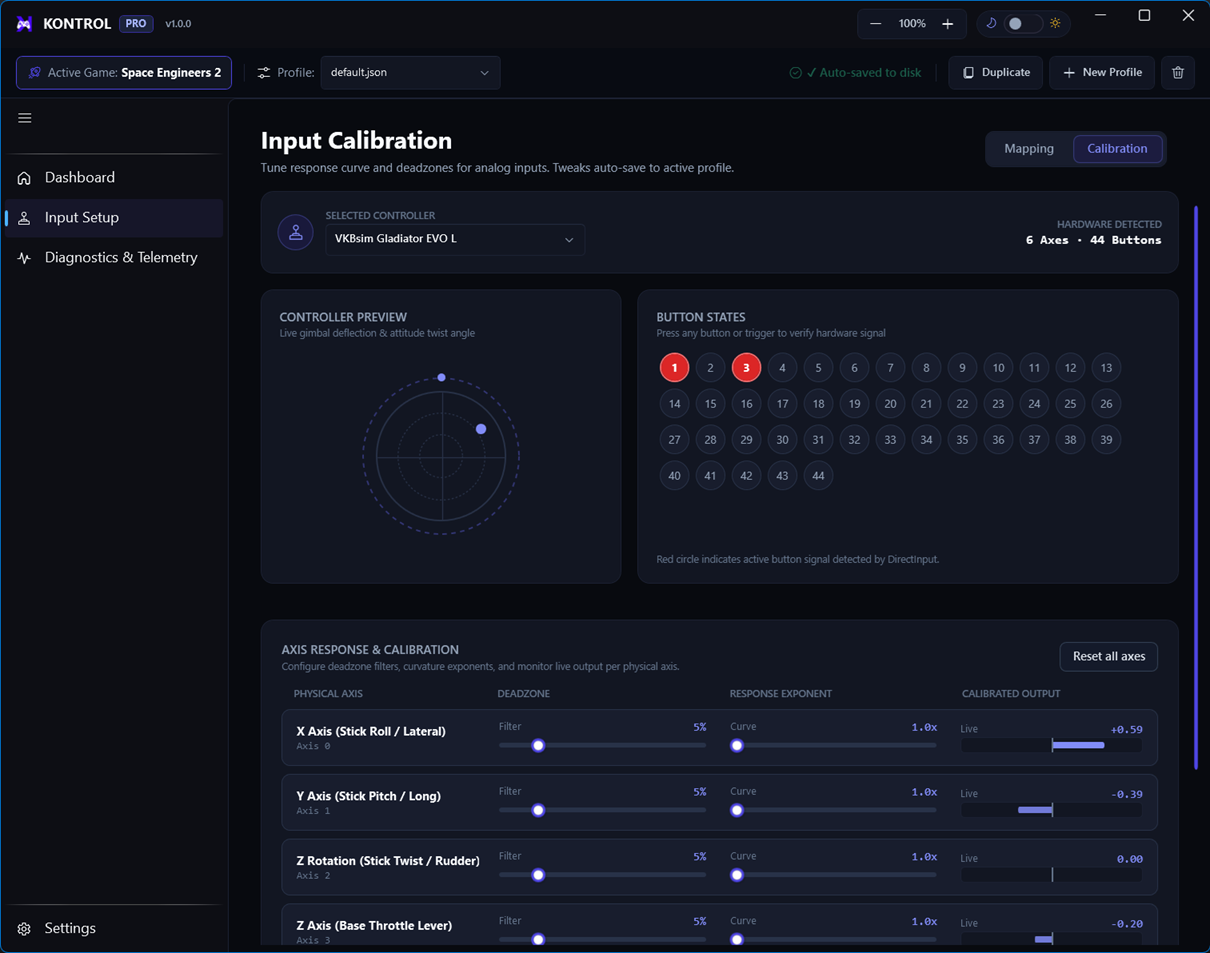
Calibration makes the rest position and usable range consistent before action tuning is applied.
Step by step
- Open Input Setup → CalibrationSelect the device and axis that needs attention.
- Center the controlLeave the stick at its neutral position while the center is captured.
- Move through the rangeFollow the on-screen range instructions for the selected axis.
- Apply and testSave calibration, return to Mapping, and check that the action is stable around center.
When to recalibrate
Recalibrate after changing USB ports, device firmware, physical hardware, or when a control drifts. If the signal is still noisy, use the action’s deadzone and tuning settings after calibration.